
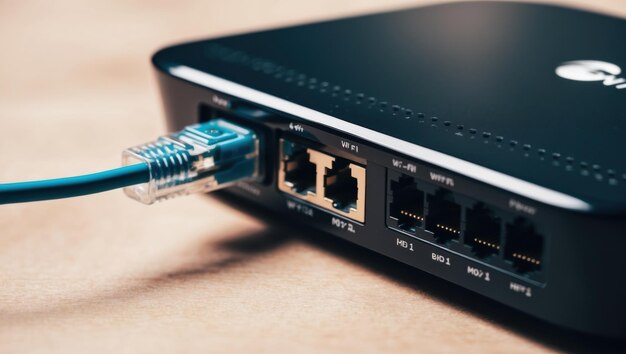
How to Set Up a Secure Home Network in 2025: The Complete Step-by-Step Guide
How to Set Up a Secure Home Network in 2025: The Complete Step-by-Step Guide
Short answer (so you don’t waste 5 minutes):
Buy a modern router (Wi-Fi 6/6E or newer) with WPA3 support, place it centrally, change default admin and Wi-Fi credentials, enable WPA3 (or WPA2-AES), disable WPS/UPnP/remote admin, create a guest network, separate your IoT devices from your main network, keep firmware updated, and review connected devices monthly. Do those steps and your home network will be fast, stable, and genuinely secure in 2025.
This article is the long, detailed version: hardware choices, exact router settings, secure Wi-Fi setup, network segmentation, privacy upgrades, common mistakes, troubleshooting, and a very large FAQ section. You can follow it even if you’re not technical.
Table of Contents
- 1. Why a Secure Home Network Matters in 2025
- 2. What You’re Protecting Against (Simple Threat Model)
- 3. What You Need (Hardware and Tools)
- 4. Choosing the Right Router in 2025
- 5. Step-by-Step Setup (From Zero to Secure)
- 6. Advanced Security and Privacy Settings
- 7. Performance Optimization Without Sacrificing Security
- 8. Common Mistakes (And How to Avoid Them)
- 9. Troubleshooting Guide
- 10. Monthly Maintenance Checklist
- 11. FAQs (Extensive)
- 12. Conclusion
- External Links & References
1. Why a Secure Home Network Matters in 2025
Your home network is no longer “just Wi-Fi.” It’s the central hub for:
- Remote work and sensitive logins
- Banking and personal data
- Smart TVs, consoles, and streaming
- IoT devices (cameras, speakers, locks, sensors)
- Cloud backups and home servers/NAS
By 2025, most households run 15–30+ connected devices. Every device is a possible entry point. If your router or Wi-Fi is weak, attackers can:
- Steal passwords and data
- Spy on traffic
- Hijack smart home devices
- Use your network for botnets and attacks
- Slow your internet or cause outages
The good news: securing a home network is a one-time setup plus light monthly maintenance. You don’t need to be an IT expert. You need a good plan.
2. What You’re Protecting Against (Simple Threat Model)
Security is easier when you know what you’re defending from. For most homes, the realistic threats are:
2.1 Nearby opportunistic attackers
People close to your house or building who scan for weak Wi-Fi. They often target default passwords, old encryption, or WPS.
2.2 Internet-wide automated attacks
Bots that probe routers remotely, hoping yours is outdated or using weak admin credentials.
2.3 Compromised IoT devices
Cheap smart devices can be insecure. If one gets hacked, it may try to move laterally to your laptop, NAS, or phone.
2.4 Accidental internal risks
Guests, kids downloading unsafe apps, or family members using weak passwords can introduce risk without meaning to.
Your goal is to reduce risk from all four categories with simple, reliable controls.
3. What You Need (Hardware and Tools)
You don’t need a “server rack.” You need good basics.
3.1 Core Requirements
- Router: Wi-Fi 6 or 6E minimum, WPA3 capable, still receiving firmware updates.
- Internet modem/ONT: From your ISP (fiber, cable, etc.).
- Ethernet cables: Cat5e/Cat6 for stable wired devices.
- A phone or laptop: For setup and admin access.
3.2 Optional But Recommended
- Mesh system: If you have a large home or dead zones.
- Managed switch: If you want advanced VLAN segmentation.
- NAS: For private home backups and media libraries.
4. Choosing the Right Router in 2025
Most security problems start with old or low-quality routers. Here’s what matters now.
4.1 Minimum features you want
- WPA3 support (or WPA2-AES fallback)
- Automatic firmware updates
- Guest network and/or IoT network
- Built-in firewall enabled by default
- Wi-Fi 6/6E for capacity and efficiency
Wi-Fi 6E adds a 6 GHz band, which reduces interference and improves performance in crowded areas, making it a strong “future-proof” choice. It does not automatically make you safer, but better bandwidth and fewer legacy devices competing for airtime improves overall reliability.
4.2 Router buying checklist
| Feature | Why it matters | Minimum in 2025 |
|---|---|---|
| Wi-Fi Standard | Speed & handling many devices | Wi-Fi 6 (AX) / 6E preferred |
| Encryption | Prevents Wi-Fi cracking and sniffing | WPA3 or WPA2-AES |
| Updates | Fixes known vulnerabilities | Auto updates or active support |
| Guest/IoT network | Stops lateral movement | Yes |
| Firewall | Blocks unsolicited inbound traffic | Yes + configurable |
If your router is older than ~5 years and not receiving updates, replacement is often the best security upgrade.
5. Step-by-Step Setup (From Zero to Secure)
This is the core of the article. Follow in order.
Step 1: Physical setup and positioning
- Connect your modem/ONT to the router’s WAN port.
- Power on both devices.
- Place the router:
- As central as possible in the home
- Elevated (shelf height or higher)
- Away from thick walls, metal objects, and microwaves
- Not next to windows if you’re in a dense area
Step 2: Access the router admin panel
- Connect to default Wi-Fi name on the label, or via Ethernet.
- Open a browser and go to the router IP:
- Common options: 192.168.0.1, 192.168.1.1, or printed on the router
- Login with the default admin credentials on the label/manual.
Step 3: Change admin username/password immediately
This is non-negotiable. Default admin logins are heavily targeted.
- Go to Administration / System / Router Management.
- Change admin password to something strong:
- 12–16+ characters
- Random words or a password manager generated string
- No birthdays, names, or easy patterns
- If possible, change admin username too.
Step 4: Update firmware
- Find Firmware Update / Software / System Update.
- Install any available update.
- Enable automatic updates if supported.
Step 5: Rename your Wi-Fi networks (SSIDs)
Change the default network names to something neutral.
- Do not include your surname, apartment number, or location.
- Avoid router brand names (“TP-LINK_1234”).
Step 6: Enable WPA3 (or WPA2-AES)
- Go to Wireless / Wi-Fi Security.
- Select:
- WPA3-Personal if available.
- If not, choose WPA2-Personal (AES).
- Avoid WPA/WEP/TKIP.
- Set a long Wi-Fi password separate from admin password.
Step 7: Disable WPS
WPS is convenient but weak. If enabled, it can allow brute-force access.
- Find the WPS setting under Wireless or Security.
- Turn it OFF.
Step 8: Disable UPnP
UPnP automatically opens ports for devices and is frequently abused by malware.
- Go to Advanced / NAT / UPnP.
- Turn it OFF.
Step 9: Turn off remote administration
You should not manage your router from the internet unless you are highly technical.
- Go to Remote Admin / WAN Access / Cloud Management.
- Disable access from WAN.
Step 10: Create a guest network
- Enable guest Wi-Fi.
- Give it a separate password.
- Enable “isolate guest devices” if offered.
Step 11: Segment IoT devices (if possible)
Many modern routers allow an “IoT network.” If not, put IoT on the guest network.
- Smart cameras
- Smart speakers
- Lights, switches, sensors
- Robot vacuums
Keep your main network for trusted devices only (laptop, phone, NAS, work systems).
Step 12: Connect devices in priority order
- Wired devices first (NAS, PC, console, smart home hub).
- Then phones/laptops.
- Then IoT devices on their segment.
6. Advanced Security and Privacy Settings
These are not mandatory, but they take your setup from “good” to “excellent.”
6.1 Use secure DNS
DNS decides where your traffic goes. Some routers let you set privacy-first DNS providers.
- Look for DNS settings under Internet/WAN.
- If your router supports it, enable DNS-over-HTTPS (DoH) or DNS-over-TLS (DoT).
6.2 Enable router firewall
Most routers have a firewall on by default. Verify it’s enabled.
6.3 Turn on device notifications
Many routers can alert you when a new device joins. This is one of the easiest ways to detect intrusions early.
6.4 Set parental controls or device schedules if needed
This is less about security and more about reducing risky behavior (e.g., unsafe downloads by kids).
6.5 Back up router configuration
After finishing setup, export your config file. If your router resets, you restore in minutes.
7. Performance Optimization Without Sacrificing Security
7.1 Prefer wired for critical devices
Use Ethernet for PCs, consoles, TVs, and NAS. This improves speed and reduces Wi-Fi load.
7.2 Separate 2.4 GHz and 5/6 GHz if your home needs it
If devices are dropping off, split bands into separate SSIDs:
- Main-5G or Main-6G for modern devices
- Main-2.4G for IoT and long-range devices
7.3 Mesh vs Extenders
If you have dead zones:
- Mesh: better security and seamless roaming.
- Cheap extenders: often weaker security and unstable performance.
7.4 QoS (Quality of Service)
QoS helps prioritize video calls or gaming traffic. Use it only if your router implementation is stable.
8. Common Mistakes (And How to Avoid Them)
- Keeping default admin logins — fastest way to get hacked.
- Using WPA/WEP/TKIP — outdated and weak.
- Leaving WPS enabled — still a major real-world vulnerability.
- Mixing IoT with your main network — increases risk massively.
- Skipping firmware updates — known exploits remain open.
- Using one Wi-Fi password forever — rotate if shared widely.
- Putting router in a corner — makes everyone use weak signal and repeats.
9. Troubleshooting Guide
9.1 Wi-Fi is slow but internet plan is fast
- Check router position.
- Switch to 5/6 GHz band.
- Consider mesh if large home.
- Update firmware.
9.2 Devices keep disconnecting
- Split bands into separate SSIDs.
- Check if IoT devices only support 2.4 GHz.
- Restart router and modem.
9.3 Unknown device appears
- Kick/block the device immediately.
- Change Wi-Fi password.
- Ensure WPA3/WPA2-AES is on.
- Confirm WPS is off.
9.4 Smart home devices won’t connect
- They may require 2.4 GHz only.
- Temporarily disable “band steering.”
- Use the IoT or guest network.
10. Monthly Maintenance Checklist
Put this on your calendar once per month:
- Check firmware updates
- Review connected devices list
- Look for failed login attempts in logs
- Confirm WPA3/WPA2-AES is still enabled
- Change guest password if many visitors used it
- Remove unused port forwards
11. Frequently Asked Questions (Extensive)
Q1. Is WPA3 always better than WPA2?
Yes in terms of security. WPA3 improves protection against password-guessing and provides stronger encryption. If you have older devices, use mixed WPA2/WPA3 mode if supported.
Q2. What if some devices don’t support WPA3?
Enable WPA2/WPA3 mixed mode, or keep WPA2-AES until you replace legacy devices.
Q3. Should I hide my SSID?
Hiding SSID is not real security. Attackers can still detect hidden networks. Strong encryption and passwords matter more.
Q4. Is a guest network really necessary?
Yes. It isolates visitor devices and reduces risk. You can also put IoT on guest/secondary networks to protect your main devices.
Q5. Can IoT devices hack my laptop?
If they share the same network, a compromised IoT device might try lateral scans. Segmentation prevents that.
Q6. Is Ethernet safer than Wi-Fi?
It is harder to intercept. Wired is ideal for critical devices, but you still need device security and updates.
Q7. Why disable WPS?
WPS relies on a short PIN system that can be brute-forced. Disabling it removes a common attack path.
Q8. Why disable UPnP?
UPnP opens ports automatically. Malware can abuse this to expose devices to the internet.
Q9. Should I use a VPN at home?
Useful if you want privacy from your ISP or need encrypted tunnels for remote work. Not mandatory for basic security.
Q10. How often should I change my Wi-Fi password?
If your password was shared widely or a guest device looked suspicious, change it. Otherwise once or twice a year is fine.
Q11. What’s the difference between modem and router?
The modem connects your home to the ISP. The router distributes that connection to your devices and manages Wi-Fi/security.
Q12. Is Wi-Fi 6E worth it?
If you live in an apartment block or have many devices, 6E’s 6 GHz band reduces congestion and improves stability.
Q13. What is “band steering”?
A feature that auto-moves devices between 2.4 and 5/6 GHz bands. Helpful, but sometimes breaks IoT setups.
Q14. Can neighbors steal my Wi-Fi if I have WPA3?
Not realistically, unless your password is weak. WPA3 with a long password is extremely robust.
Q15. Do I need antivirus if my network is secure?
Yes. Network security reduces risk, but devices still need their own protection.
Q16. What is a VLAN?
A virtual LAN that splits one physical network into isolated segments. Great for separating IoT and guests.
Q17. Is it safe to buy cheap routers online?
Only if they receive real firmware support. The cheapest models often stop getting updates early.
Q18. What if I travel a lot and want to manage my router remotely?
Use your router’s secure app or set remote admin only with strong safeguards (2FA, restricted IP). Otherwise keep remote admin off.
Q19. Should I turn off Wi-Fi at night?
Security-wise it’s not necessary. If it helps your sleep or reduces exposure in dense buildings, it’s fine but optional.
Q20. How do I know if I’m being hacked?
Signs include unknown devices, router reboots, sudden speed drops, or changed settings. When in doubt: change passwords, update firmware, and reset to a clean configuration.
12. Conclusion
A secure home network is not complicated. It is a checklist:
- Modern router + good placement
- New admin login
- WPA3 (or WPA2-AES)
- WPS/UPnP/remote admin off
- Guest and IoT segmentation
- Firmware updates + monthly reviews
Do this once, maintain it lightly, and your home network will stay safe and fast throughout 2025 and beyond.
External Links & References
- Router Security best practices (WPA2/WPA3, disable WPS/UPnP, guest networks)
- CISA: Securing your home Wi-Fi (disable WPS and update firmware)
- XDA Developers: Practical steps to secure a home network
- WPA2 vs WPA3 explained
- Cisco: Wi-Fi 6 vs Wi-Fi 6E and the 6 GHz band
- Guest Wi-Fi isolation and segmentation best practices (2025)
- Secure home network setup guide (2025)